

One of the advantages of using WordPress as a publishing platform is that the WordPress folks are constantly adding new and better features. It can be a challenge to keep up sometimes.
This is especially true if we’ve come up with a way to do something that has since been made simpler in more recent versions.
For example I have a friend who has been blogging even longer than I have and never really got into using a widgetized sidebar. That’s certainly not a problem. You can do just fine programming your sidebar by hand. If you are into that sort of thing, that is.
I found I have one of those habits too. One of the first things I usually do when I’m working with a WordPress blog or web site is go in and turn off the visual editor. The WordPress visual editor used to cause formatting challenges for me so I got used to working in raw HTML.
Well the visual editor has come a long way since I first started using WordPress. With version 2.3 they’ve added a whole slew of new toolbar functionality so the visual editor can do things that formerly had to be coded in HTML by hand.
(The functionality has actually been there since version 2.1 but now it is turned on as a default instead of having to access it through a keystroke combination.)
The Advanced Toolbar
You can access the advanced toolbar by clicking on the far right button as shown in the screen shot below.
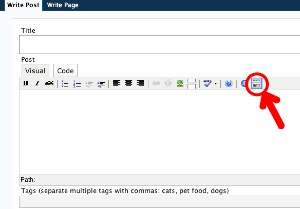
When you do, a second line of functions is revealed as you can see here in this second screen shot.

Just like with the basic toolbar, all you have to do is highlight some text and click the appropriate advanced toolbar button to add that attribute.
Let’s quickly run through some of this added functionality.
New Options
First is a formatting dropdown list that can add paragraph or line formatting. These options will add HTML tags to your text which can be preset in the CSS style sheet. You can designate something as a paragraph, address, preformatted text, or any of the 6 header options.
So now, when we talk about improving SEO and readability with header tags, you can do it right from the visual editor. Very nice.
Next up is the underline button to underline text.
Then we have the full justify button to make your text align evenly along both the left and right margins.
The first section of the advanced toolbar is rounded out with a button to change the text color. Now we don’t have to go searching for the HTML hex codes to change text color. That will be a very handy feature for some folks.
The second section has two paste buttons. A little explanation is in order here.
The first paste button is Paste as Plain Text. This button functions like a normal paste button by dropping in whatever has been copied “as is.”
The second paste button is Paste from Word. Microsoft Word has long caused problems with the visual editor and was part of why I stopped using it in the first place. You see when you copy text out of Word it adds all sorts of formatting data to the text. You can’t see it. But it’s there.
When you pasted Word text into the visual editor it would pretty much pass that formatting straight through. Trouble is most of it isn’t HTML friendly and would cause screwy formatting problems. Without looking at the code (by clicking on the “Code” button above the basic toolbar) you’d have no idea what was going on.
It was a regular source of frustration for new WordPress users who have a tendency to compose their posts in Word and then copy them into WordPress. Now this new “Paste form Word” button should alleviate much of that frustration.
Since I’ve switched to Mac myself and don’t use Windows much anymore, if you’ve got some experience using this new button, please let us know how well it works for you.
The next two buttons are more utilitarian in that they remove formatting and clean up messy code. Of the two I suspect the remove formatting button will be more widely used. That one will strip out all formatting for the highlighted text so users can start with a clean slate when things get a little too discombobulated. The clean up messy code button will attempt to fix obvious problems, but I’m a little skeptical on how well it will work.
The next button in line is Insert Custom Character which will open up a dialog box so that you can insert a non-keyboard character in your text.
The last two buttons on the advanced toolbar are undo and redo. And I’m personally a big fan of the undo button. I’m just saying.
So there you have it, the new visual editor advanced toolbar in WordPress. Happy posting!
